Introduction to the 2D animation features
Overview
The AnimationPlayer node allows you to create anything from simple to complex animations.
In this guide you learn to:
Work with the Animation Panel
Animate any property of any node
Create a simple animation
Call functions with the powerful Call Function Tracks
In Mole you can animate anything you find in the Inspector. Animations are changes to properties over time. This means you can animate anything visual in nature: sprites, UI elements, particles, the visibility, and color of textures. But not only. You can also control gameplay related values and call any function.
Create an AnimationPlayer node
To use the animation tools we first have to create an AnimationPlayer node.
The AnimationPlayer node type is the data container for your animations. One AnimationPlayer node can hold multiple animations, that can automatically transition to one another.
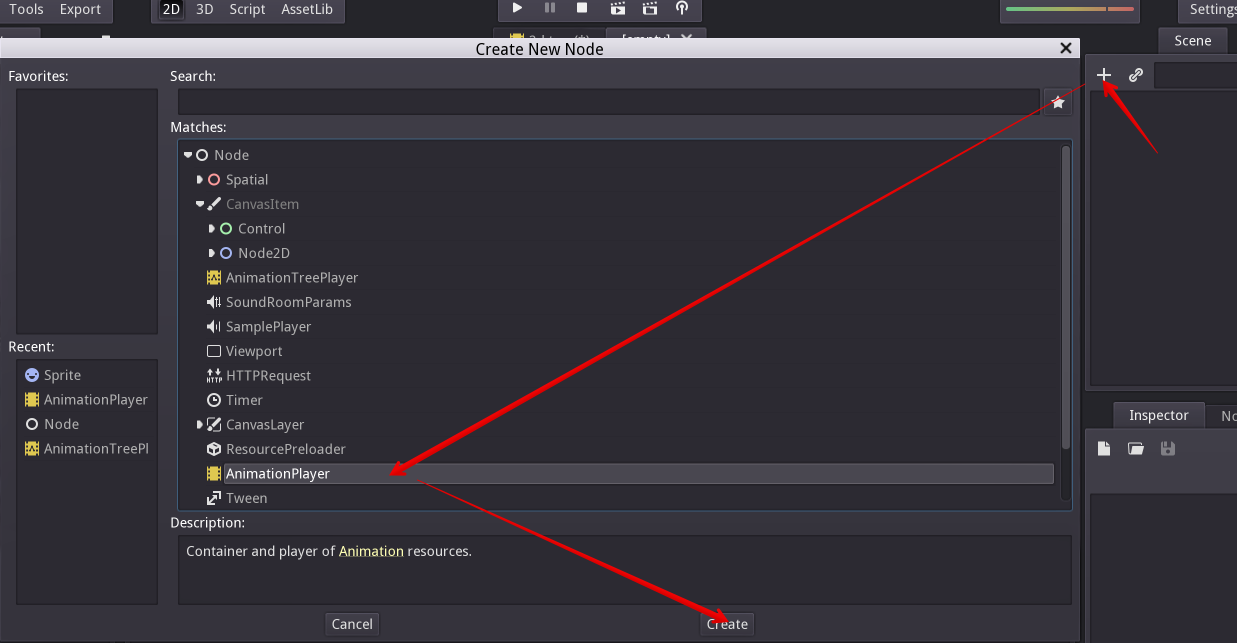
The AnimationPlayer node
Click on the AnimationPlayer node in the Node tab to open the Animation Panel at the bottom of the viewport.
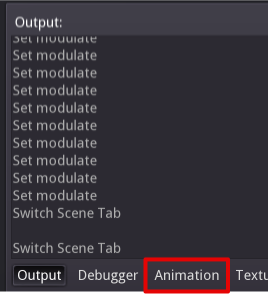
The animation panel position
It consists of five parts:
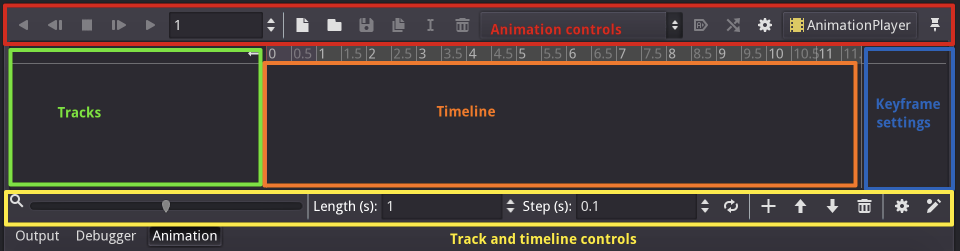
The animation panel
Animation controls (i.e. add, load, save, and delete animations)
The tracks listing
The timeline with keyframes
The track modifiers and keyframe editor (when enabled)
The timeline and track controls, where you can zoom the timeline and edit tracks for example.
See the animation panel reference below for details.
Computer animation relies on keyframes
On the computer animations rely on keyframes. A keyframe defines the value of a property at a certain point in time.
White and blue diamond shapes represent keyframes in the timeline.
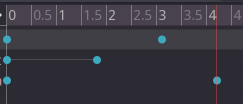
Keyframes in Mole
The engine interpolates values between keyframes, resulting in a gradual change in values over time.
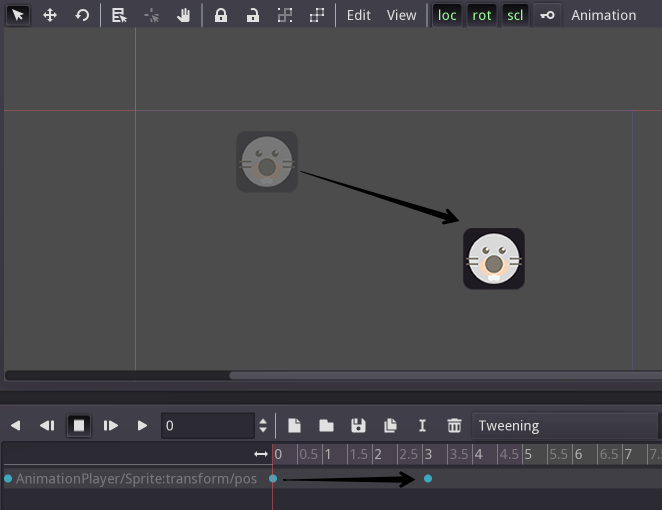
Two keyframes are all it takes to obtain a smooth motion
The timeline lets you insert keyframes and change their timing. It also defines how long the animation is.

The timeline in the animation panel
Each line of the Animation Panel is an animation track. Normal and Transform tracks reference node properties. Their name or id is a path to the node.

Example of Normal animation tracks
Tip
If you animate the wrong property, you can edit a track’s path anytime.
Double click on it and type the new path. Play the animation using the
“Play from beginning” button  (Default shortcut:
Shift+D) to see the changes instantly.
(Default shortcut:
Shift+D) to see the changes instantly.
Tutorial: Creating a simple animation
Scene setup
For this tutorial, we’ll going to create an AnimationPlayer node and a sprite node as a AnimationPlayer node child.
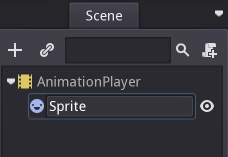
Our scene setup
The sprite holds an image texture and we animate that sprite to move between two points on the screen. As a starting point, move the sprite to a left position on the screen.
Tip
Adding animated nodes as children to the AnimationPlayer node is not required, but it is a nice way of distinguishing animated nodes from non-animated nodes in the Scene Tree.
Select the AnimationPlayer node and click on “Add animation” ( ) in the animation tab to add a new animation.
Enter a name for the animation in the dialog box.
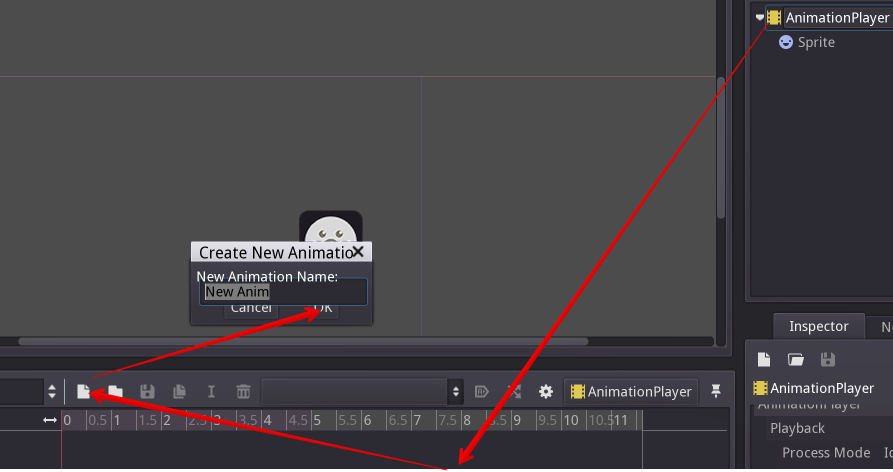
Add a new animation
Adding a track
To add a new track for our sprite, select it and take a look in the toolbar:

Convenience buttons
These switches and buttons allow you to add keyframes for the selected node’s location, rotation, and scale respectively.
Deselect rotation, because we are only interested in the location of our sprite for this tutorial and click on the key button.
As we don’t have a track already set up for the transform/location property, Mole asks, wether it should set it up for us. Click on “Create”.
This creates a new track and our very first keyframe at the beginning of the timeline:

The sprite track
The track name consists of a Node Path, followed by a colon, followed by a reference to its property, that we would like to modify.
In our example, the path is AnimationPlayer/Sprite and the property
is transform/pos.
The path always starts at the AnimationPlayer node’s parent (so paths always have to include the AnimationPlayer node itself).
Note
Don’t worry if you change the names of nodes in the Scene Tree, that you already have tracks for. Mole automatically updates the paths in the tracks.
The second keyframe
Now we need to set the destination where our sprite should be headed and how much time it takes to get there.
Let’s say, we want it to take 2 seconds to go to the other point. By default the animation is set to last only 1 second, so change this in the timeline controls animation panel’s lower panel to 2.

Animation length
Click on the timeline header near the 2 second mark and move the sprite to the target destination on the right side.
Again, click the key button in the toolbar. This creates our second keyframe.
Run the animation
Click on the “Play from beginning” () button.
Back and forth
As you can see, the “loop” button is enabled by default and our animation loops. Mole has an additional feature here. Like said before, Mole always calculates the frames between two keyframes. In a loop, the first keyframe is also the last keyframe, if no keyframe is specified at the end.

Animation loop
If you set the animation length to 4 seconds now, the animation moves back and forth.
Track settings
Each track has a settings panel at the end, where you can set the update rate and the track interpolation.
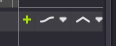
Track settings
The update rate of a track tells Mole when to update the property values. This can be:
Continuous: Update the property on each frame
Discrete: Only update the property on keyframes
Trigger: Only update the property on keyframes or triggers
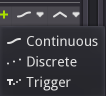
Track rate
In normal animations, you usually use “Continuous”. The other types are used to script complex animations.
The interpolation tells Mole how to calculate the frame values between the keyframes. These interpolation modes are supported:
Nearest: Set the nearest keyframe value
Linear: Set the value based on a linear function calculation between the two keyframes
Cubic: Set the value based on a curved function calculation between the two keyframes

Track interpolation
Cubic interpolation leads to a more natural movement, where the animation is slower at a keyframe and faster between keyframes. This is usually used for character animation. Linear interpolation creates more of a robotic movement.
Keyframes for other properties
Mole doesn’t restrict to only edit transform properties. Every property can be used as a track where you can set keyframes.
If you select your sprite while the animation panel is visible, you get a small keyframe button for all of the sprite’s properties. Click on this button and Mole automatically adds a track and keyframe to the current animation.
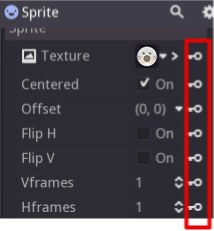
Keyframes for other properties
Edit keyframes
For advanced use and to edit keyframe in detail, enable the keyframe
editor ( ).
).
This adds an editor pane on the right side of the track settings. When you select a keyframe, you can directly edit its values in this editor:
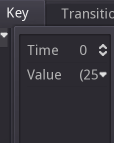
Keyframe editor editing a key
Additionally, you can also edit the transition value for this keyframe:
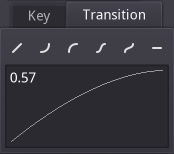
Keyframe editor editing a transition
This tells Mole, how to change the property values when it reaches this keyframe.
You usually tweak your animations this way, when the movement doesn’t “look right”.
Advanced: Call Func tracks
Mole’s animation engine doesn’t stop here. If you’re already comfortable with Mole’s scripting language MoScript and API you know that each node type is a class and has a bunch of callable functions.
For example, the SamplePlayer2D node type has a function to play a sample.
Wouldn’t it be great to play a sample at a specific keyframe in an animation? This is where “Call Func Tracks” come in handy. These tracks reference a node again, this time without a reference to a property. Instead a keyframe holds the name and arguments of a function, that Mole should call when reaching this keyframe.
To let Mole play a sample when it reaches a keyframe, follow this list:
Add a SamplePlayer2D to the Scene Tree and add a sample library and a sample to it.
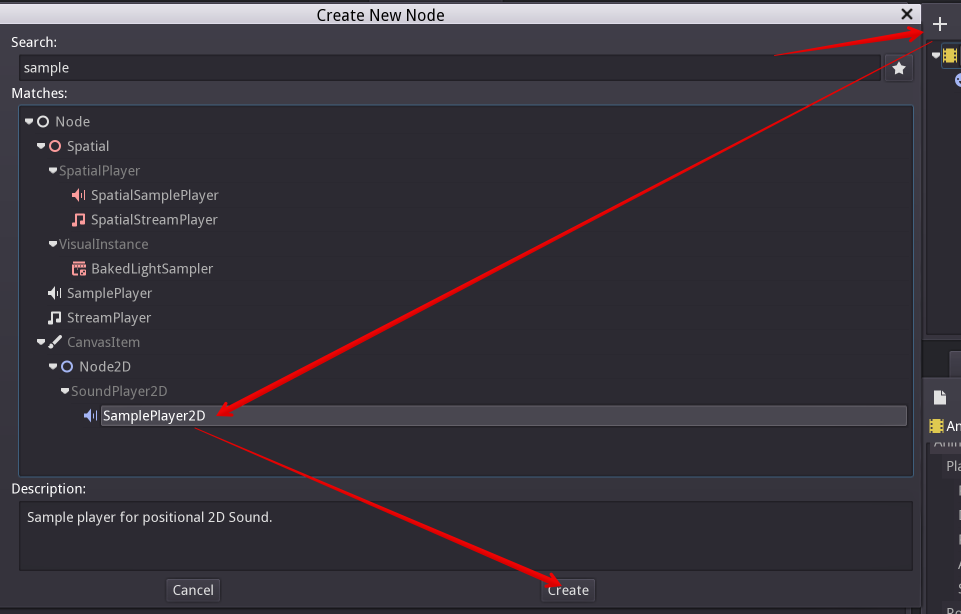
Add SamplePlayer2D
Click on “Add track” ( ) on the animation panel’s track
controls.
) on the animation panel’s track
controls.
Select “Add Call Func Track” from the list of possible track types.
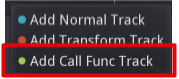
Add Call Func Track
Select the SamplePlayer2D node in the selection window. Mole adds the track with the reference to the node.
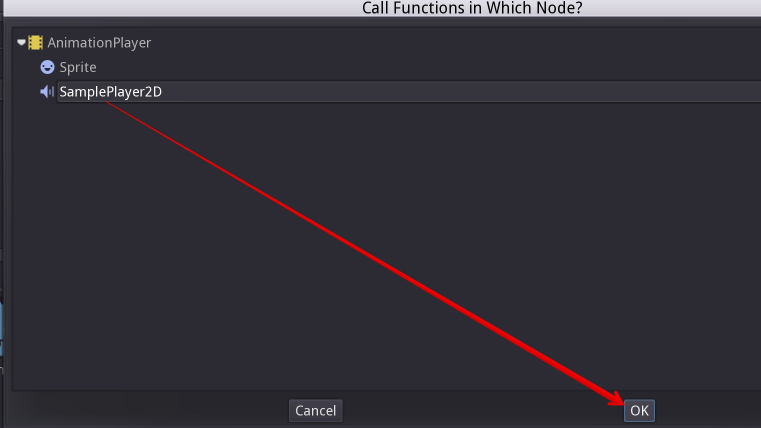
Select SamplePlayer2D
Select the timeline position, where Mole should play the sample by clicking on the timeline header.
Enable the Keyframe Editor by clicking on .
Click on “Add keyframe” near the settings of our func track ( ) and select the keyframe.
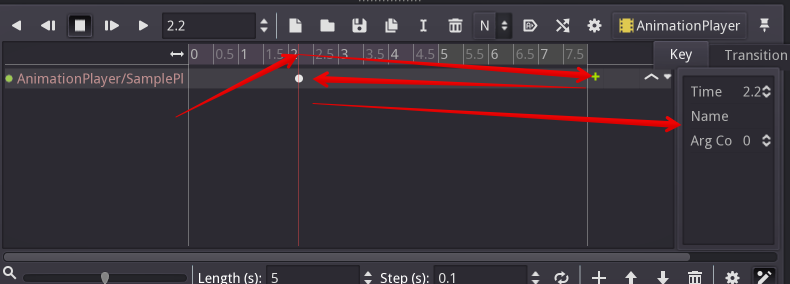
Add a keyframe to the call func track
Enter “play” as the function name and set the argument counter to 1. Select “String” as the first argument type and use the sample name as the argument value.
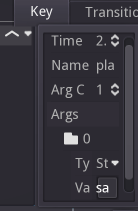
Keyframe settings of a call func track
When Mole reaches the keyframe, Mole calls the SamplePlayer2D node’s “play” function with the sample name.
References
Animation panel reference
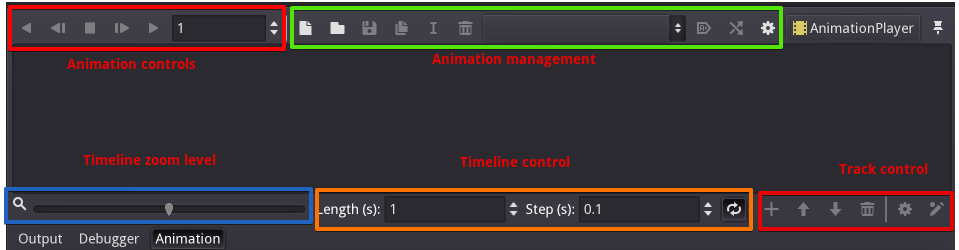
The animation panel reference
The animation panel has the following parts (from left to right):
Animation controls
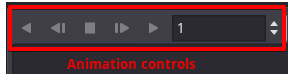
Animation controls
Play animation backwards from current position
Play animation backwards from the animation end
Stop animation
Play animation forwards from the animation beginning
Play animation forwards from the current position
Direct time selection
Animation management

Animation management
Create a new animation
Load animation
Save animation
Duplicate animation
Rename animation
Delete animation
Animation selection
Automatically play selected animation
Edit animation blend times
Extended animation Tools
Timeline zoom level control
Timeline zoom level contro
Timeline control

Timeline control
Length of animation
Steps of animation
Toggle loop animation
Track control
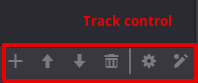
Track control
Add track
Move track up
Move track down
Delete track
Extended track tools
Toggle keyframe editor